
Bring your own AI model
On GOAT or the free trial, open Settings, then AI Settings, choose Your API Key (BYOK) or Local AI (Ollama), and tap Test Connection and Save Settings. Your key stays on your phone.
Steps
Tap the menu icon, then the gear icon for Settings. Under AI, tap AI Settings.
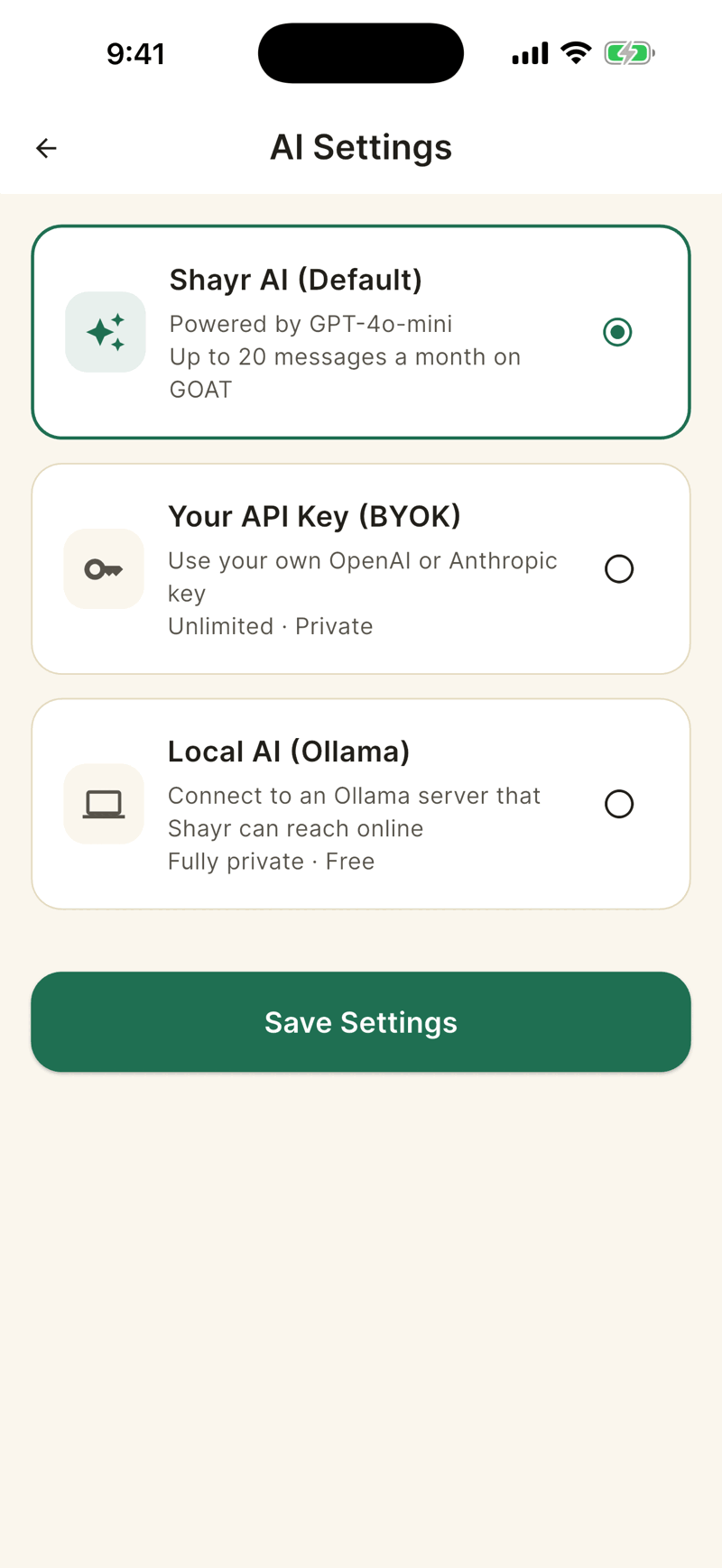
Choose Your API Key (BYOK). Pick OpenAI or Anthropic.
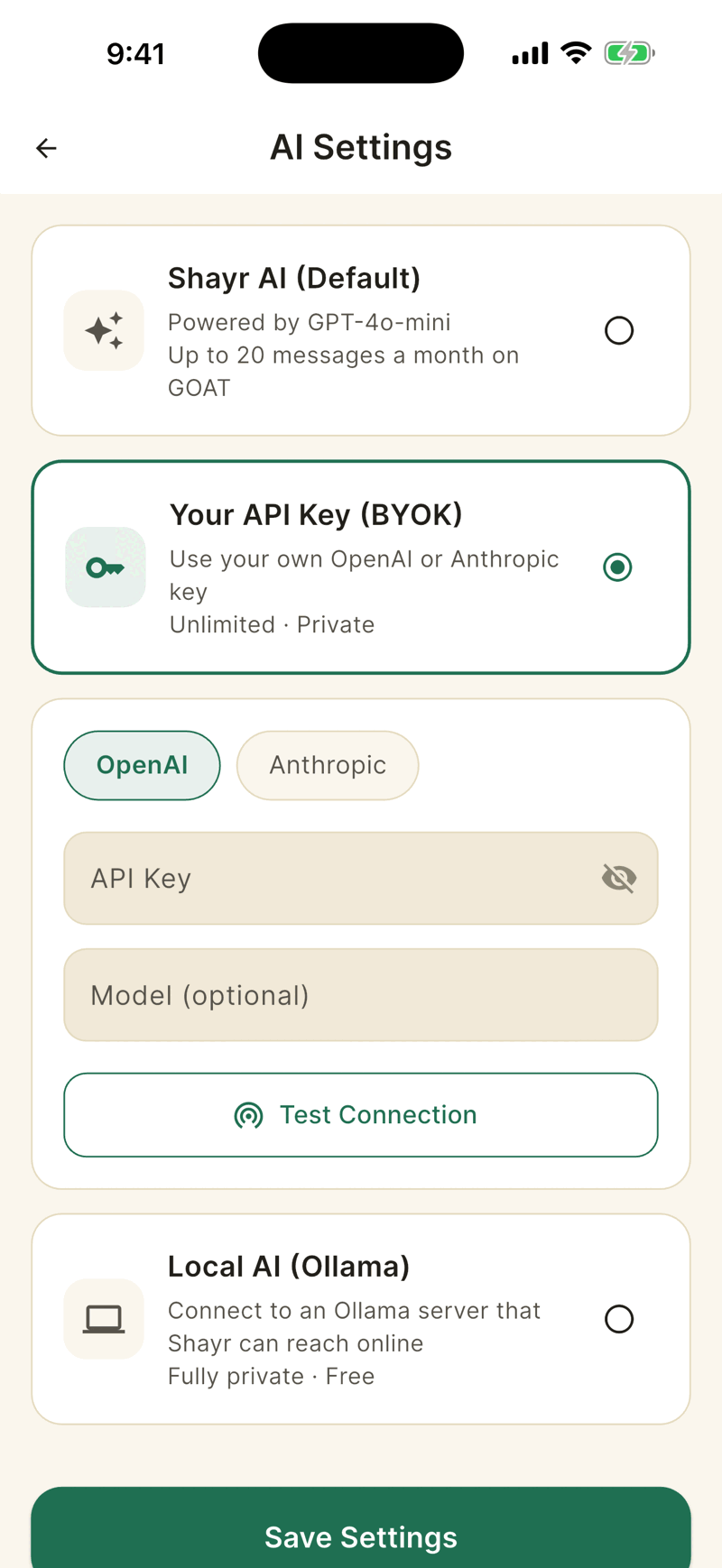
Paste your API Key. Leave Model (optional) empty to use the default (
gpt-4o-minifor OpenAI, a Claude Sonnet model for Anthropic), or type a model name.Tap Test Connection. Shayr sends a tiny test message and shows Connection successful or the provider's error.
Tap Save Settings.
Local AI (Ollama)
Choose Local AI (Ollama), enter your Ollama URL and the Model, test and save. Shayr's servers make the call, not your phone, so the address must be reachable from the internet, for example through a tunnel. Addresses on your home network such as 192.168.1.5 and localhost are refused, even though the hint text shows one.
Where your key lives
- The key is stored only in your phone's secure keychain. Shayr's database does not store it.
- The key is sent from your phone with each chat request so Shayr's server can pass it to the provider for that one call. It is not saved or logged.
- The same household summary described in What Shayr AI can answer goes to the provider you chose.
- Signing out clears the key and settings from the phone.
Limits
Your own key or server has no Shayr message limit. You pay your provider for usage. Bringing your own key is a GOAT and trial feature. Bussin accounts see a lock and an Upgrade to GOAT button, and if a plan drops below GOAT the saved key stops being used until you upgrade.