
Export your data as CSV
Open Settings, then Export data, and tap Transactions, Accounts and balances, Budgets or Savings goals. Shayr builds a CSV file and opens the iPhone share sheet so you can save it or open it in Numbers, Excel or Google Sheets.
Steps
Tap the menu icon, then the gear icon for Settings. Tap Export data.
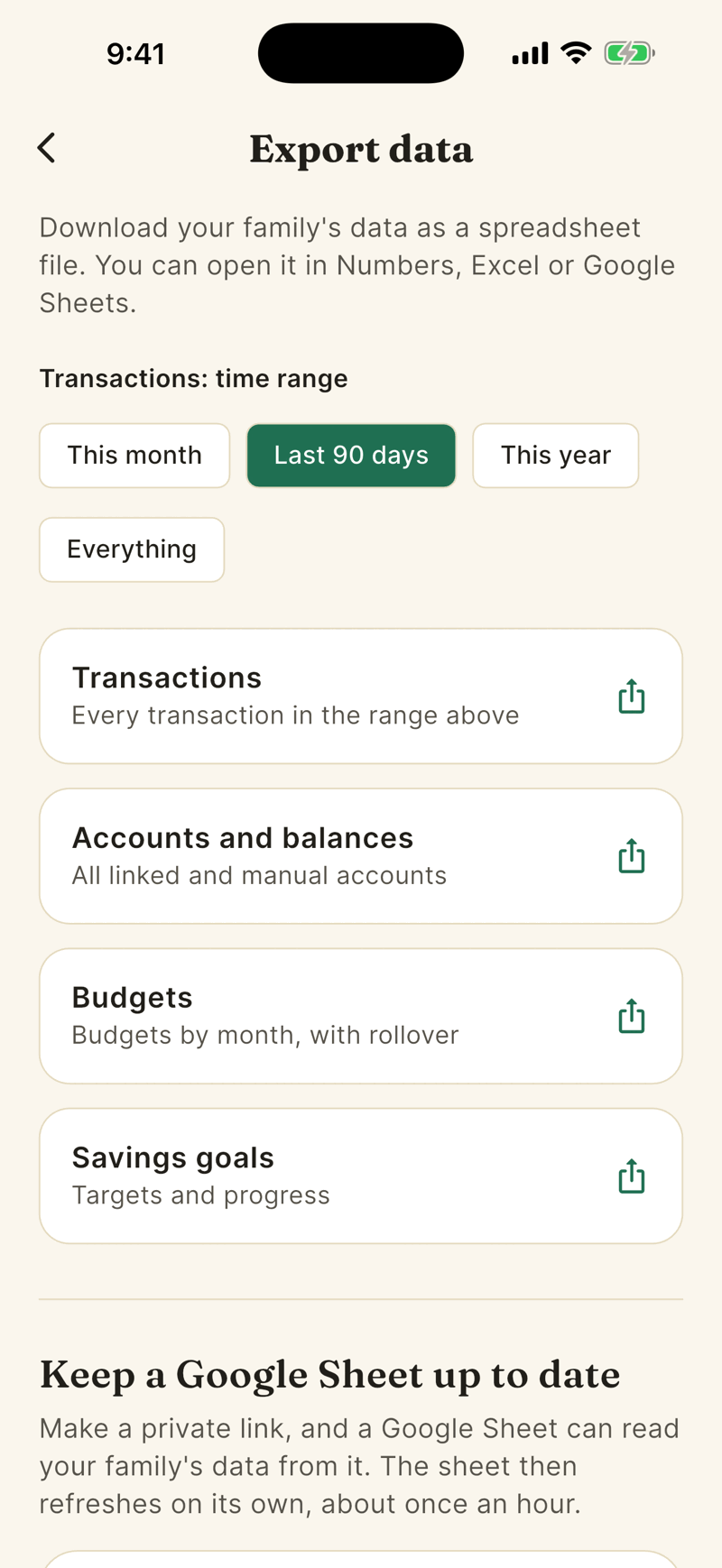
For transactions, choose a range: This month, Last 90 days (the default), This year or Everything. The range only affects Transactions.
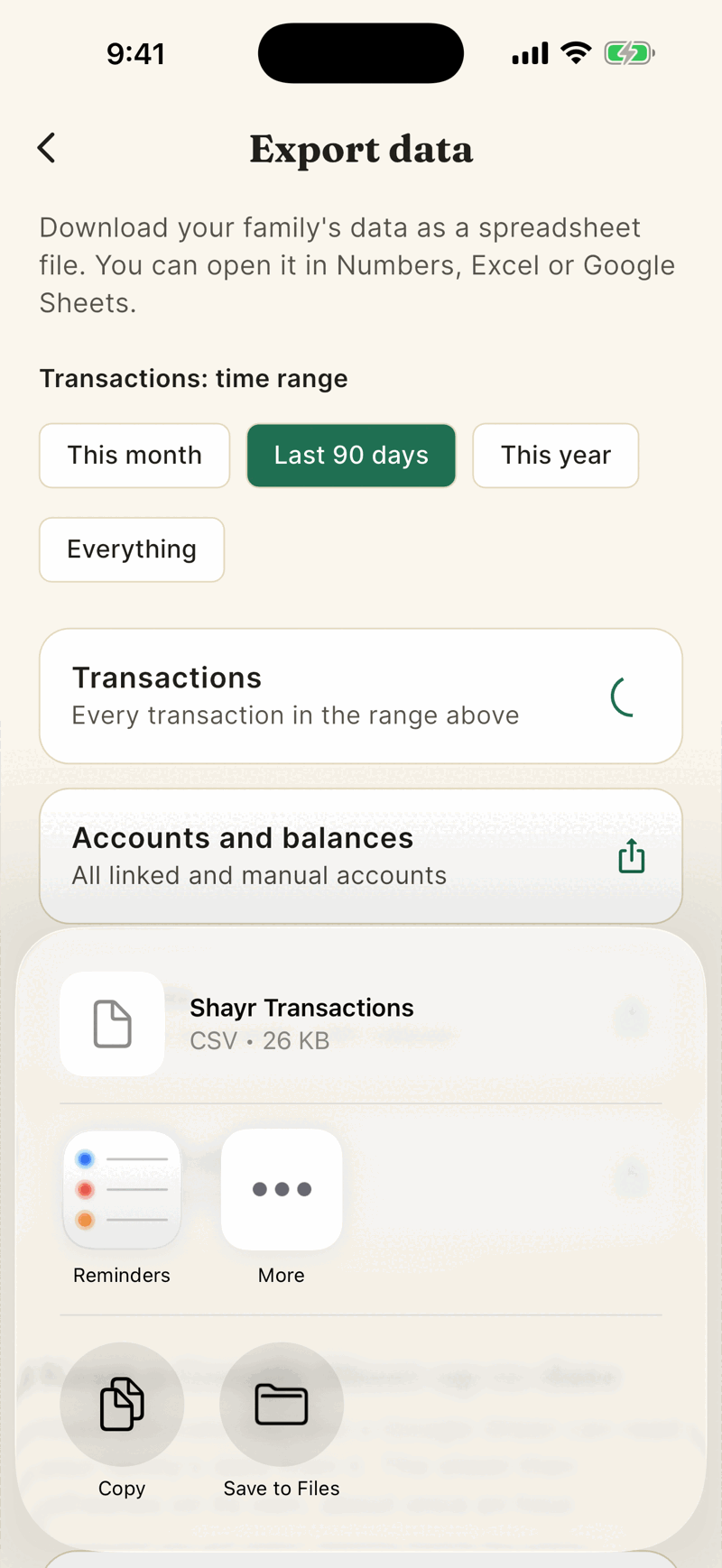
Tap the tile you want. A spinner shows while Shayr builds the file.
The share sheet opens. Choose Save to Files, send it to an app, or copy it.
What is in each file
| File | Columns |
|---|---|
| Transactions | Date, Merchant, Amount, Category, Account, Account mask, Member, Pending |
| Accounts and balances | Institution, Type, Subtype, Current balance, Available balance, Currency, Owner |
| Budgets | Month, Category, Budget, Rollover enabled, Rollover amount |
| Savings goals | Goal, Target, Saved, Percent, Target date |
- The file covers your whole household's data.
- Transactions are newest first, up to 50,000 rows. They include income and transfers. Spending is negative and money in is positive. Category is the detailed code, for example
FOOD_AND_DRINK_RESTAURANT. - File names look like
shayr-transactions-2026-10-05.csv. They are UTF-8 so Excel reads accents correctly. - Text that starts with
=,+,-or@gets an apostrophe in front, which stops spreadsheets running it as a formula.
CSV export is included in Bussin, GOAT and the free trial. To keep a Google Sheet updated without exporting each time, see Keep a Google Sheet up to date, which needs GOAT or the free trial.