
Filters and search on Spend
Use the chips under the tabs for the current month, the two months before it, This Quarter, This Year or Custom, and tap Filters to narrow by person, account or category.
Steps
On Spend, swipe the row of chips under the tabs. The first three are months and are named for them, for example October, September and August. Spend opens on the current month. Then come This Quarter and This Year. Tap a chip to switch to it.
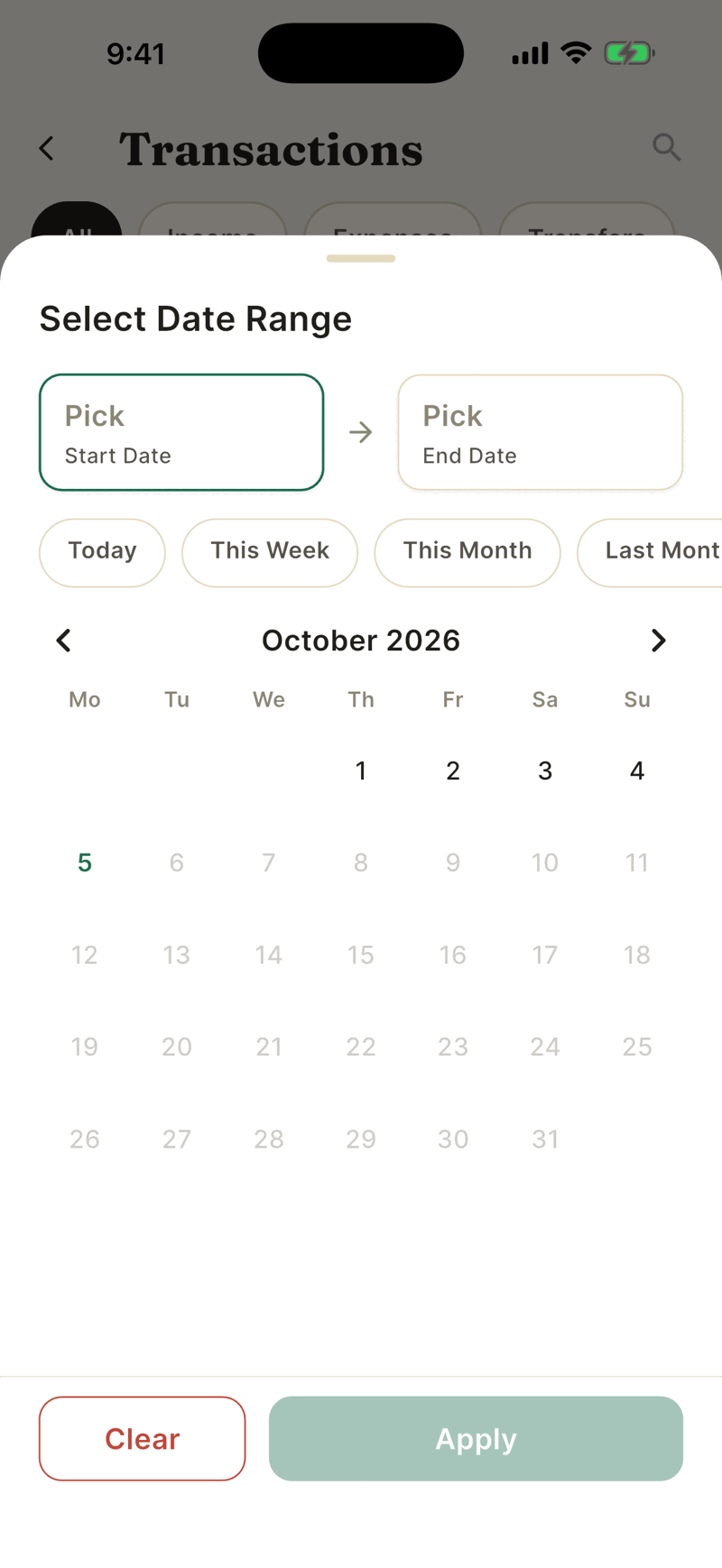
Tap Custom to pick your own dates. Choose a preset such as Last Month, or tap a start day and then an end day on the calendar. Future days are greyed out. Tap Apply.
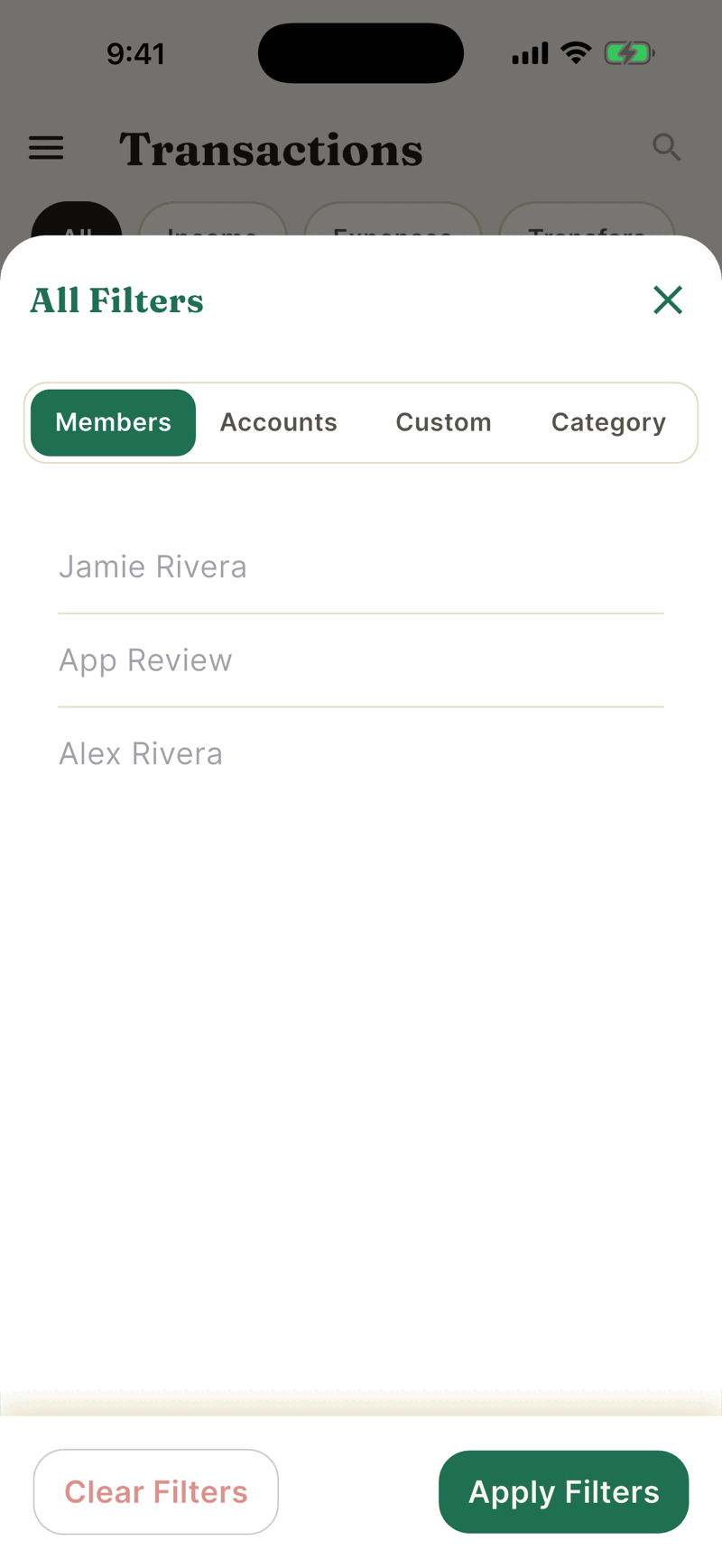
Tap Filters to open All Filters. It has four tabs: Members, Accounts, Custom and Category. Pick what you want, then tap Apply Filters.
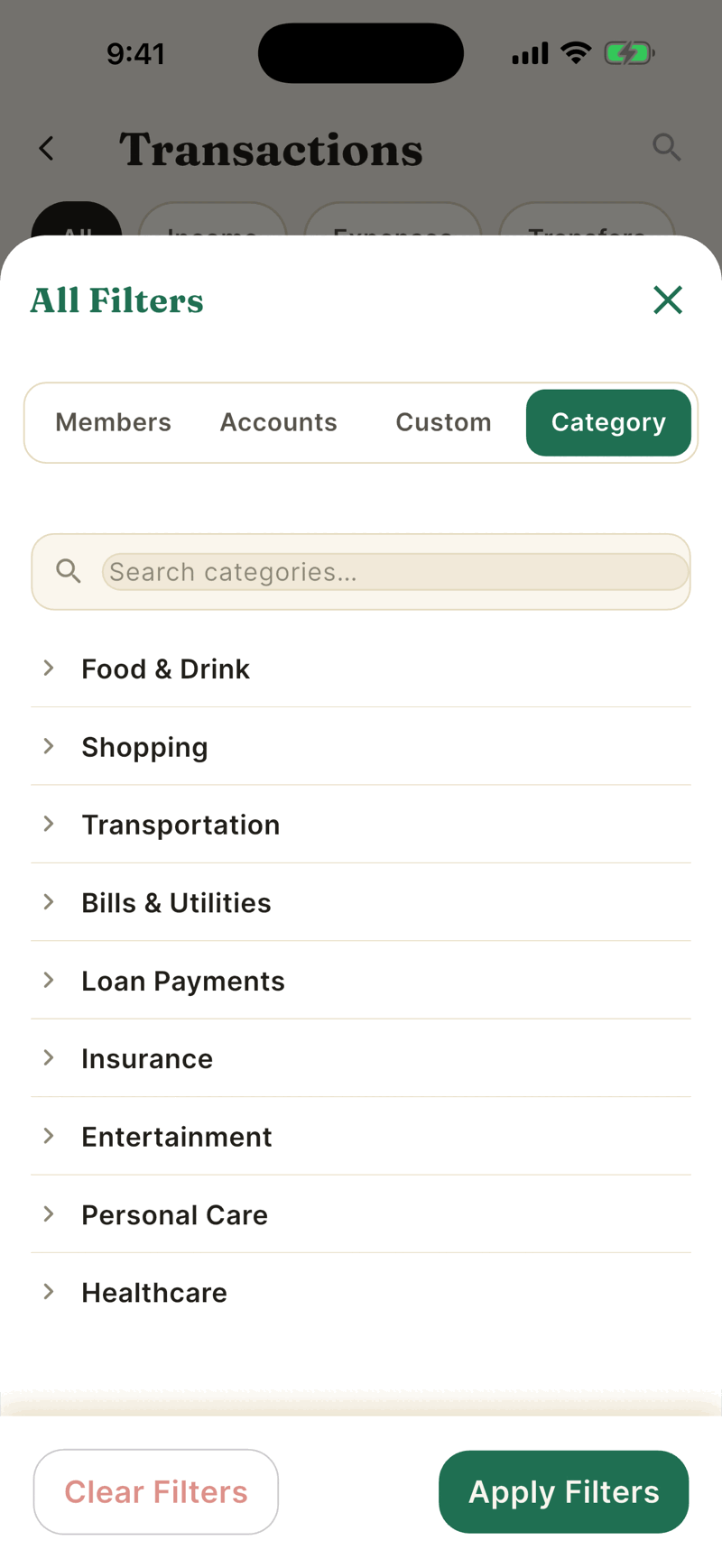
In the Category tab, tap a group such as Food & Drink to open its subcategories. You can pick one category at a time. Tap it again to deselect.
A red Clear chip appears while any filter is on. Tap it to start over.
What each filter does
| Filter | Notes |
|---|---|
| Members | Shows transactions on accounts that person linked. It follows the account owner, not the Whose swipe? tag. |
| Accounts | Pick one or more accounts. |
| Custom | Any date range. Also reachable from the Custom chip. |
| Category | One category at a time, using the same names as Change Category. |
The type tabs (All, Income, Expenses, Transfers) work together with these filters. For search, see Find a transaction.