
Change a transaction's category
Press and hold a transaction on Spend, pick a new category, and Shayr applies it to every transaction from that merchant. On iPad, select the transaction and tap Change category.
Steps
Open Spend. Press and hold the transaction for about a second. A plain tap opens the detail sheet instead, so hold a little longer if that happens.
The Change Category sheet opens. It says This will apply to all "[merchant]" transactions. Use Search categories or scroll.
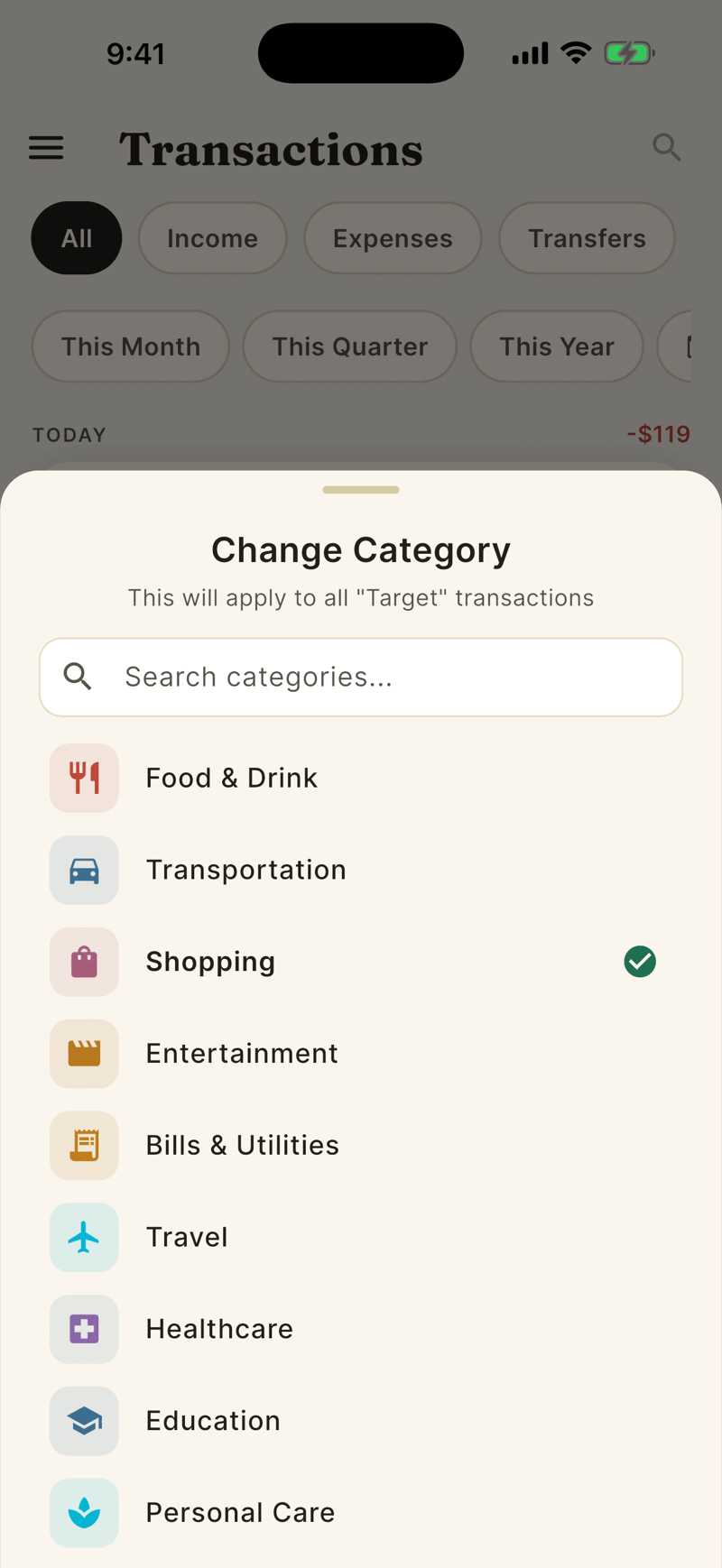
Tap the category you want. A message confirms that all transactions from that merchant now show under it.
What it changes
- It creates one rule per merchant for your whole household. Everyone sees the new category.
- It also updates that merchant's transactions from the last 3 months. Older ones are not rewritten, and a very different spelling of the merchant name may not be matched.
- You choose from 19 broad categories. You cannot pick a detailed subcategory.
- Budgets and Insights read the category stored on each transaction, so allow a moment for them to catch up.
Undo a change
Open Settings, then Manage Category Rules. Swipe a rule to the left, or tap the trash icon, and confirm. The bank's original category comes back.
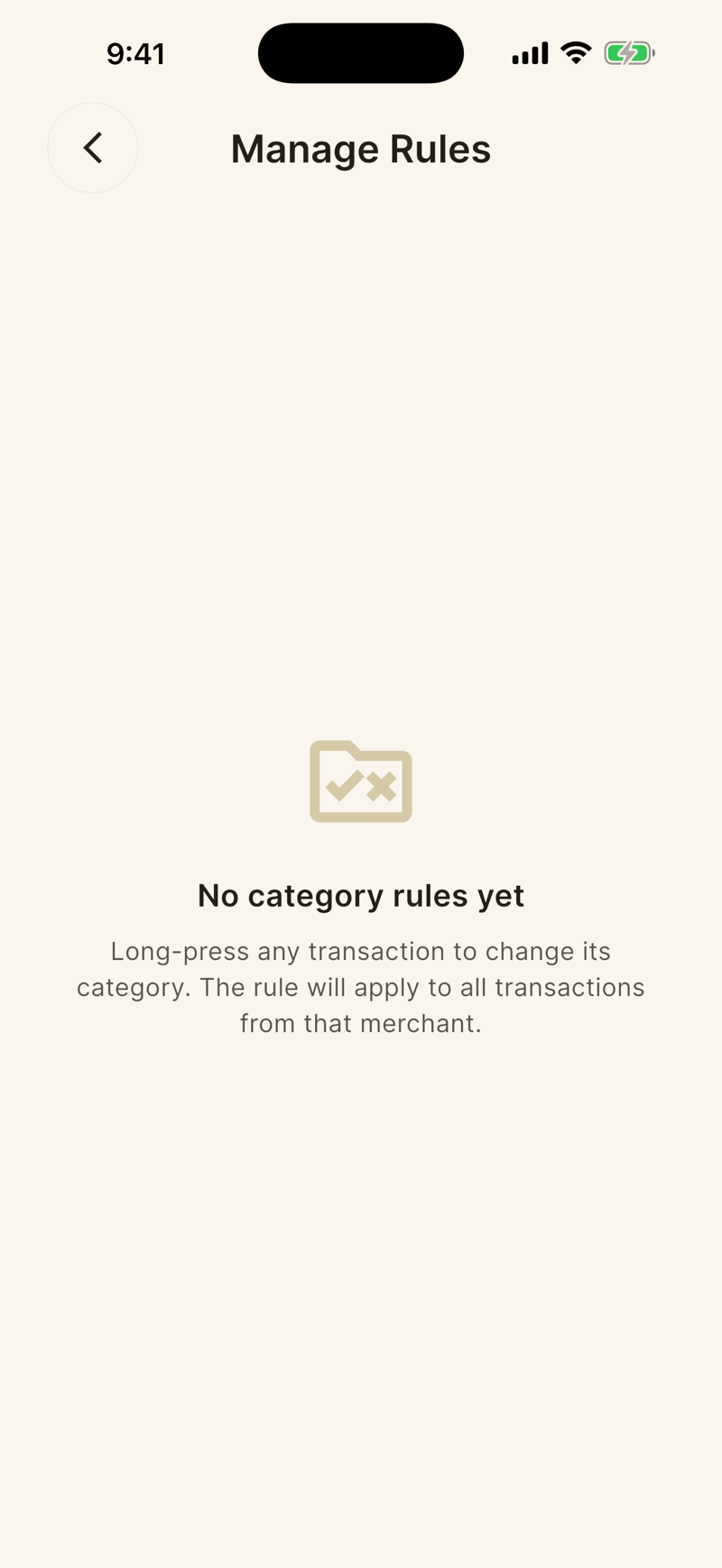
A new account shows this empty screen until you make your first change.