
Make a House Rule from a transaction
On iPad, select a transaction and tap Make a House Rule. On iPhone there is no button on the transaction, so start from House Rules in the menu or from a Spending patterns finding. Either way the rule form opens empty or pre-filled by the pattern, not by the transaction.
Steps
On iPad, open Spend and tap a transaction in the list. Its details appear on the right.
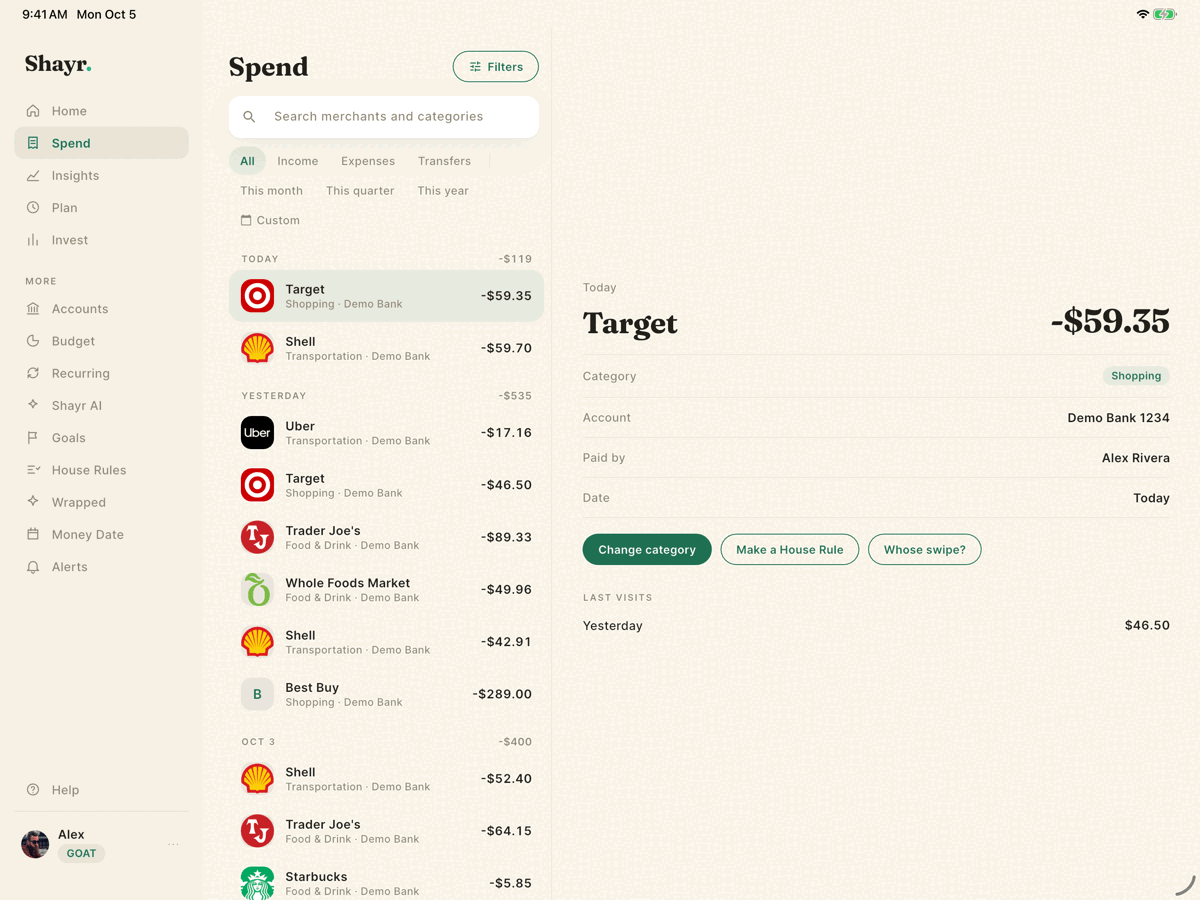
Tap Make a House Rule. The Add a rule sheet opens.
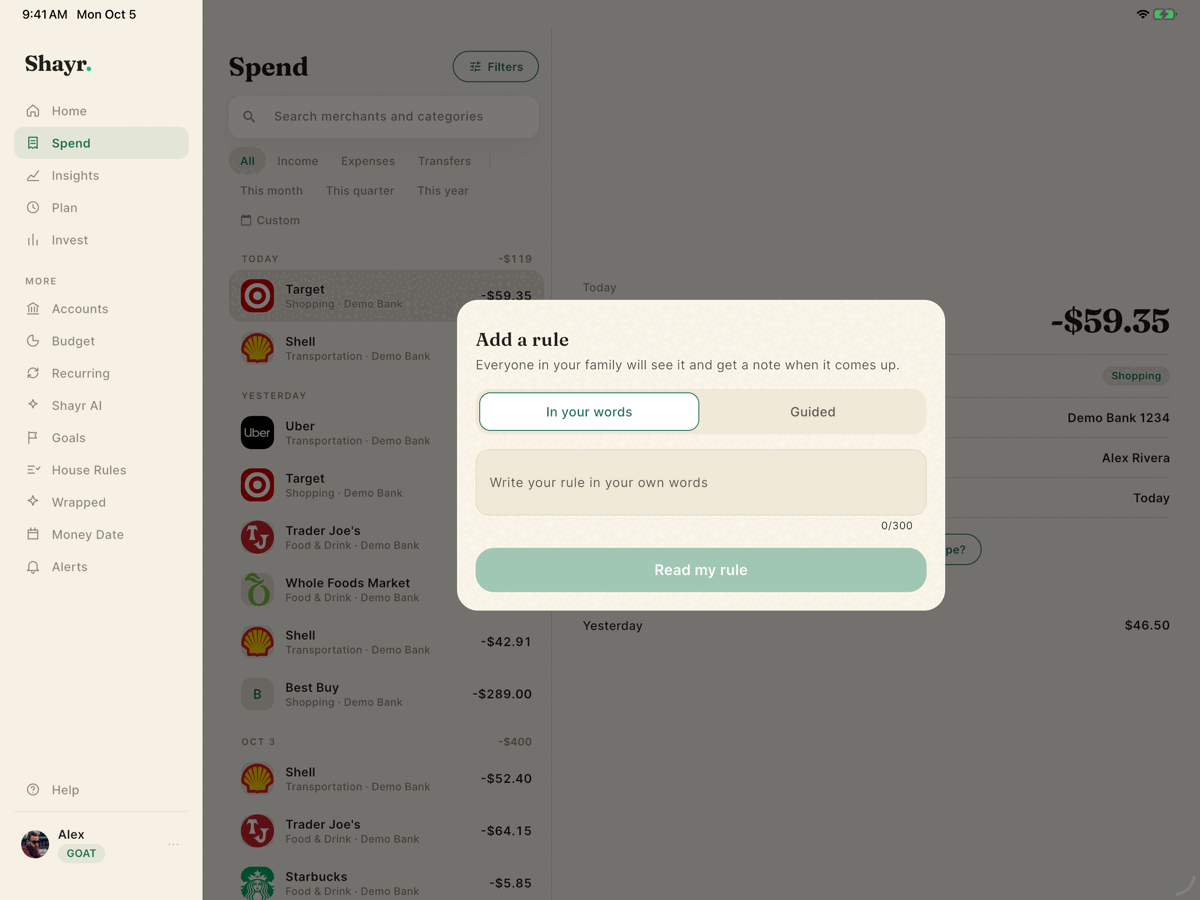
The sheet is not filled in from the transaction. Pick Guided, then Any charge at a store, and type the merchant name, or choose One purchase over an amount.
Tap Save rule. Everyone in your household sees the rule and gets a note when it comes up.
On iPhone
- Tap the menu icon on any main tab, then House Rules.
- Tap the + at the top right or Add a rule.
- Choose Any charge at a store and type the merchant, or any other rule type.
A Spending patterns finding can also offer Make a House Rule, and that version arrives pre-filled. Nothing is saved until you tap Save rule.
All the rule types are described in House Rule types.