
Find a transaction
Open Spend and scroll, or tap the magnifier at the top right and type a merchant name. Tap any row to see its date, account and category.
Steps
Tap Spend in the bottom bar. It opens on the current month. The list is grouped by day, and each day header shows what went out in red and what came in in green.
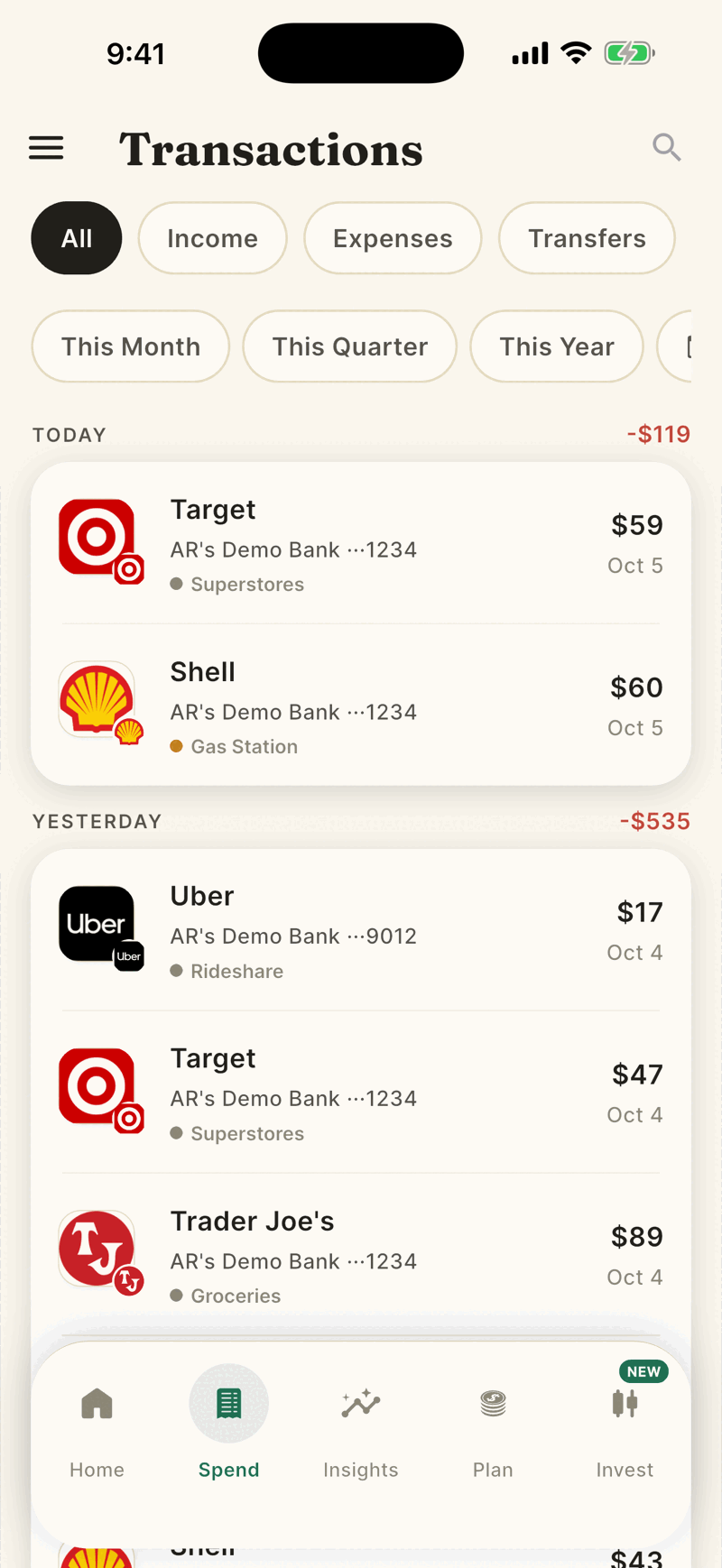
Use the tabs at the top to narrow the list. Income shows paychecks and other money in. Expenses shows spending. Transfers shows moves between your own accounts and credit card payments, which are kept out of spending on purpose.
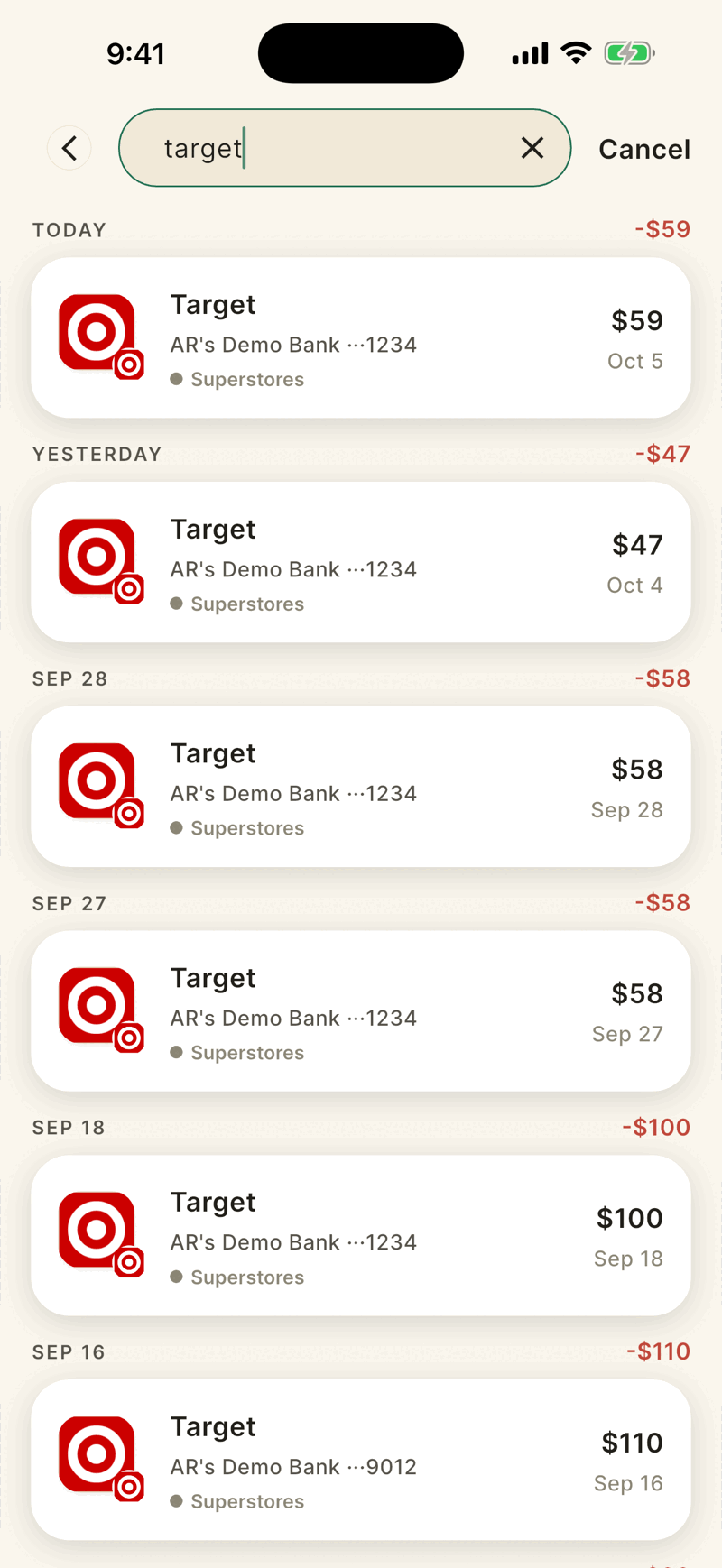
To search, tap the magnifier at the top right and type part of a merchant name, for example target. Results appear as you type, newest first.
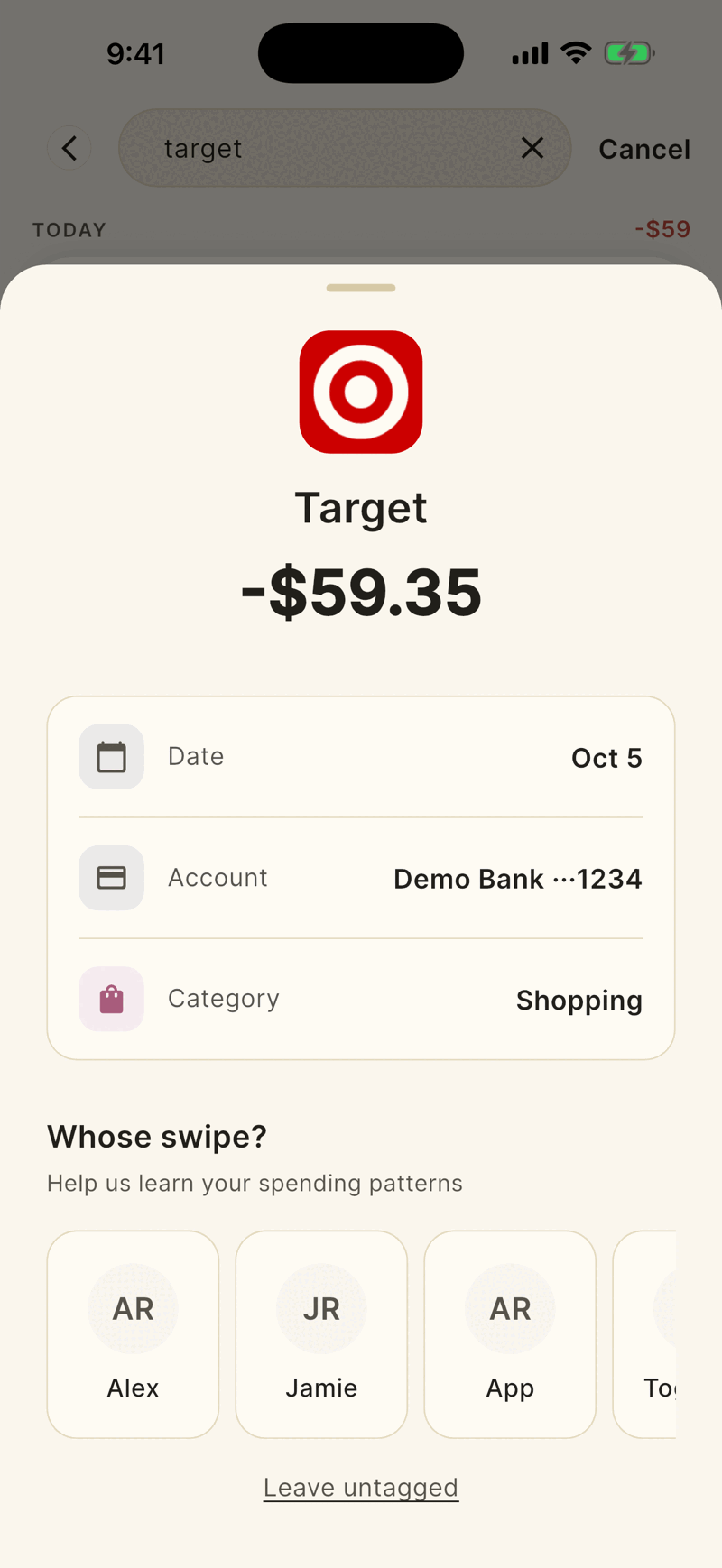
Tap a row to open it. You see the merchant, amount, Date, Account and Category, plus the Whose swipe? picker, an Add a note button and, further down, Here, last six months (a bar for each month you spent at that merchant) and Similar purchases.
Good to know
- Search matches the merchant name only. It does not search categories or account names, even though the empty search screen mentions them.
- Pending purchases appear faded with a PENDING badge. They can change amount or disappear when the bank posts the final charge.
- Spend opens on the current month. To look back, tap an earlier month, This Quarter or This Year, or set a Custom range. See Filters and search. The first day of a month the list is empty until a purchase posts, and last month is one tap away.
- The list loads 25 rows at a time. Keep scrolling for more.
- You cannot edit the amount, date or merchant name of a bank transaction, or split or delete it. You can add a note, change its category and say whose swipe it was.
- Things you add yourself, such as cash, show a small Added by hand tag and can be edited and removed. See Add an expense by hand.
The month so far
On iPad, when no transaction is selected, the space beside the list shows the month so far: what you spent and in how many purchases, what came in, your top three places, your top category and any unusual days. On a narrower iPad window the same numbers sit in a card above the list. On iPhone you see one calm line above the list, and only when the month is clearly quieter than usual: fewer than 60 percent of the purchases you usually have by this day, at least 5 fewer, once the month is 7 days old and Shayr has two earlier months with 10 or more purchases in the same days. Nothing is split by person.